
Live player: change channels, jump back and open the guide
Every remote button in the full-screen live player — zapping, the previous-channel jump, the channel list and the side guide.
Step by step
- 1
Change channel
▲ goes to the previous channel in the list and ▼ to the next one; CH+ and CH− do the same. The list wraps around at the ends. A bar with the channel number, name, now and next shows for 5 seconds after every change.
- 2
Jump back to the last channel
Press ◀ to return to the channel you watched before. Press it again to go back and forth between the two — handy during two matches at once. It even works after restarting the app.
- 3
Open the channel list
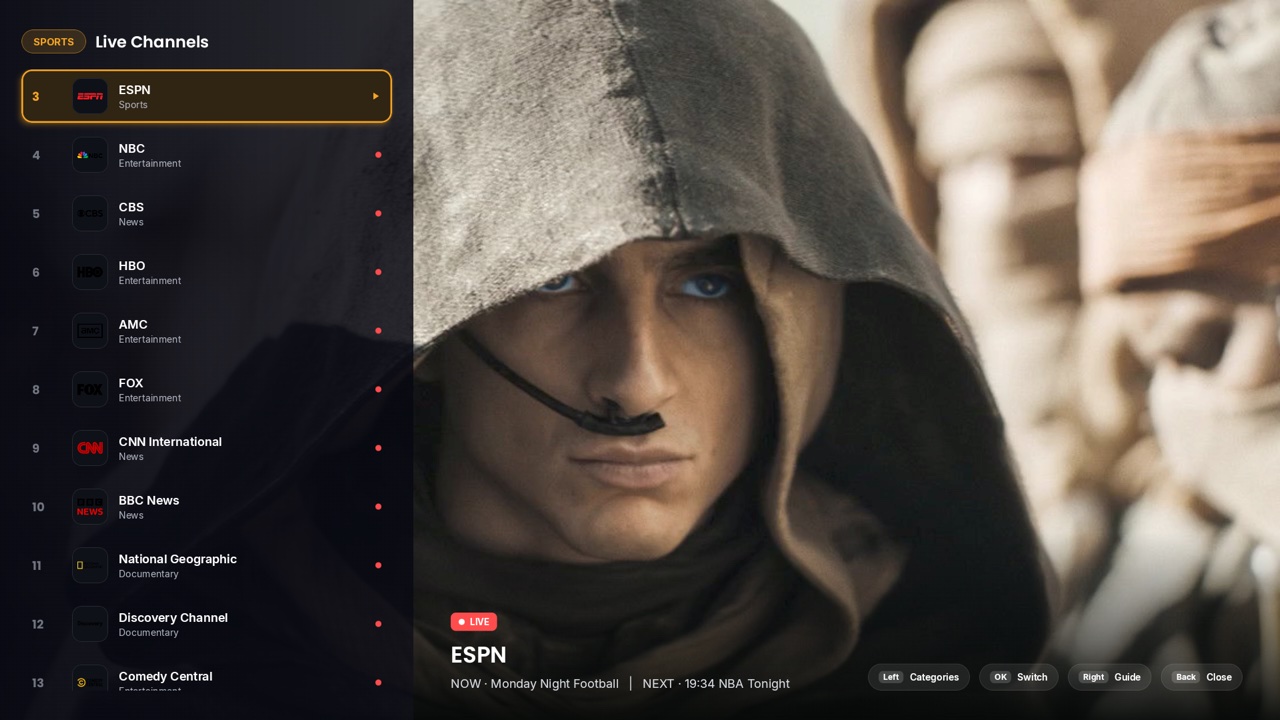
Press OK. Move with ▲ ▼ and press OK to switch. Press ◀ for the categories and Favorites, pick one with OK, and ▶ to return to its channels.
- 4
Open the side guide
Press ▶ while watching. The panel offers “Add to Favorites”, “Record Channel” and “Refresh EPG”, then the schedule of the channel. Press OK on a programme to watch it, set a reminder or schedule a recording.
- 5
Leave the player
Press BACK to close one layer at a time (picker, popup, list); in plain full screen BACK leaves the player.
Tips & tricks
- From the channel list, highlight another channel and press ▶: the side guide (and “Record Channel”) then works for that channel without switching to it.
- Audio and subtitle languages for live channels follow Settings › Player › “Preferred audio language” and “Preferred subtitle language”.
- A red “REC” pill at the top right means a recording is running.
If something goes wrong
- ⚠“Can’t play this channel”: use ◀ ▶ to choose “Retry”, “Channels” or “Back”. ▲ and ▼ still change channel, so you can simply move on.
Related guides
Reminder: 1ClickTV Player is a media player — bring your own authorized IPTV playlist or provider.