
How to browse and play movies
Rows by category, a details page with Resume, Trailer and Download, and Continue Watching.
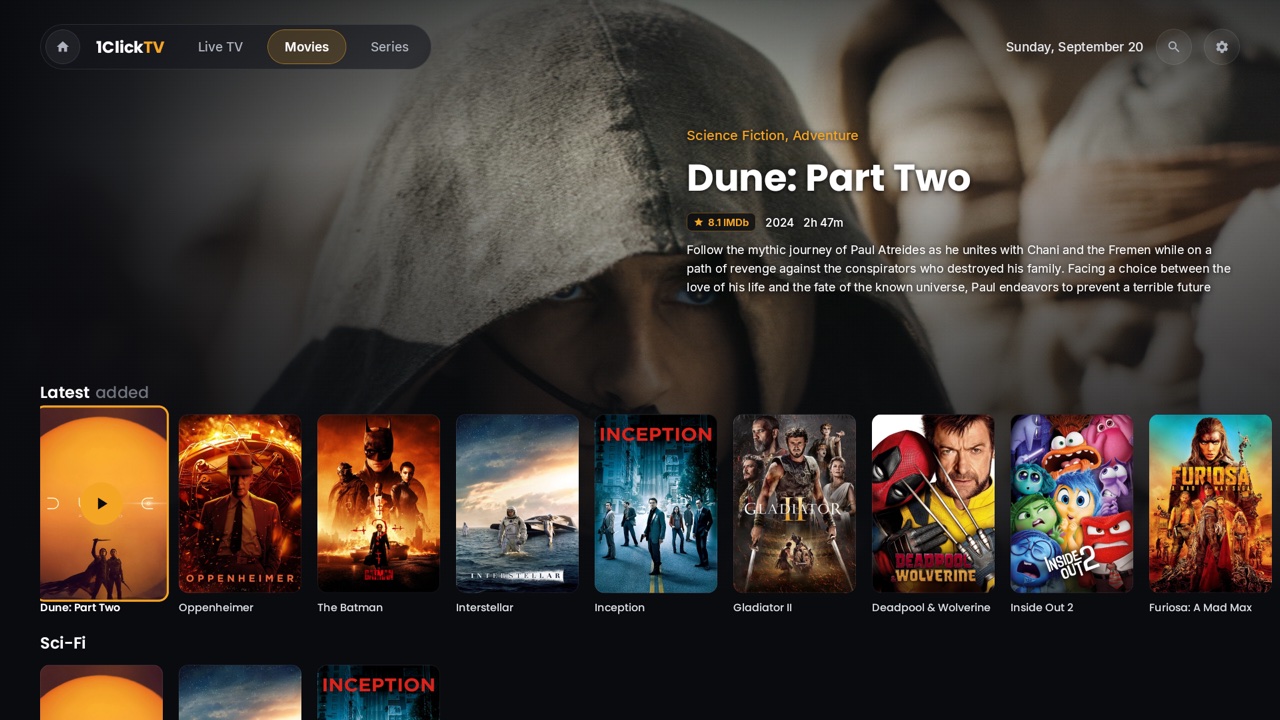
Step by step
- 1
Open Movies
On Home, press OK on the Movies card. You can also switch between Live TV, Movies and Series with the tabs at the top.
- 2
Browse the rows
Use ▲ ▼ to move between rows — Continue Watching, Latest added, Favorites, 4K movies, then one row per category — and ◀ ▶ along a row. The highlighted title fills the screen with its rating, plot and cast.
- 3
See a whole category
A row shows 20 titles. Go to its last card, “See all”, and press OK for the full category.
- 4
Open the details
Press OK on a poster. The details page shows “Play” (or “Resume · 12:34” if you started it), “Start Over”, “Trailer” when the provider has one, “Download” and “Favorite”, plus Cast and “More like this”.
- 5
Play
Press OK on Play or Resume. The app saves your place every few seconds, so you can stop at any time and continue later.
Tips & tricks
- Coming back from a movie returns you to the same row and poster.
- Posters show a quality badge (4K, FHD, HD), a gold star for favourites, a progress bar, and a green ✓ when the movie is downloaded.
- On a TV that cannot play 4K, the app plays the HD copy of the same title when your provider has one.
- Continue Watching keeps one row per profile. Turn it off in Settings › Movies › “Continue Watching row”.
Related guides
Reminder: 1ClickTV Player is a media player — bring your own authorized IPTV playlist or provider.